
1. Getting started
Life Planner organizes recurring responsibilities into plans, such as plant care, bicycle maintenance, or document renewals. No Valrisa account or login is needed.
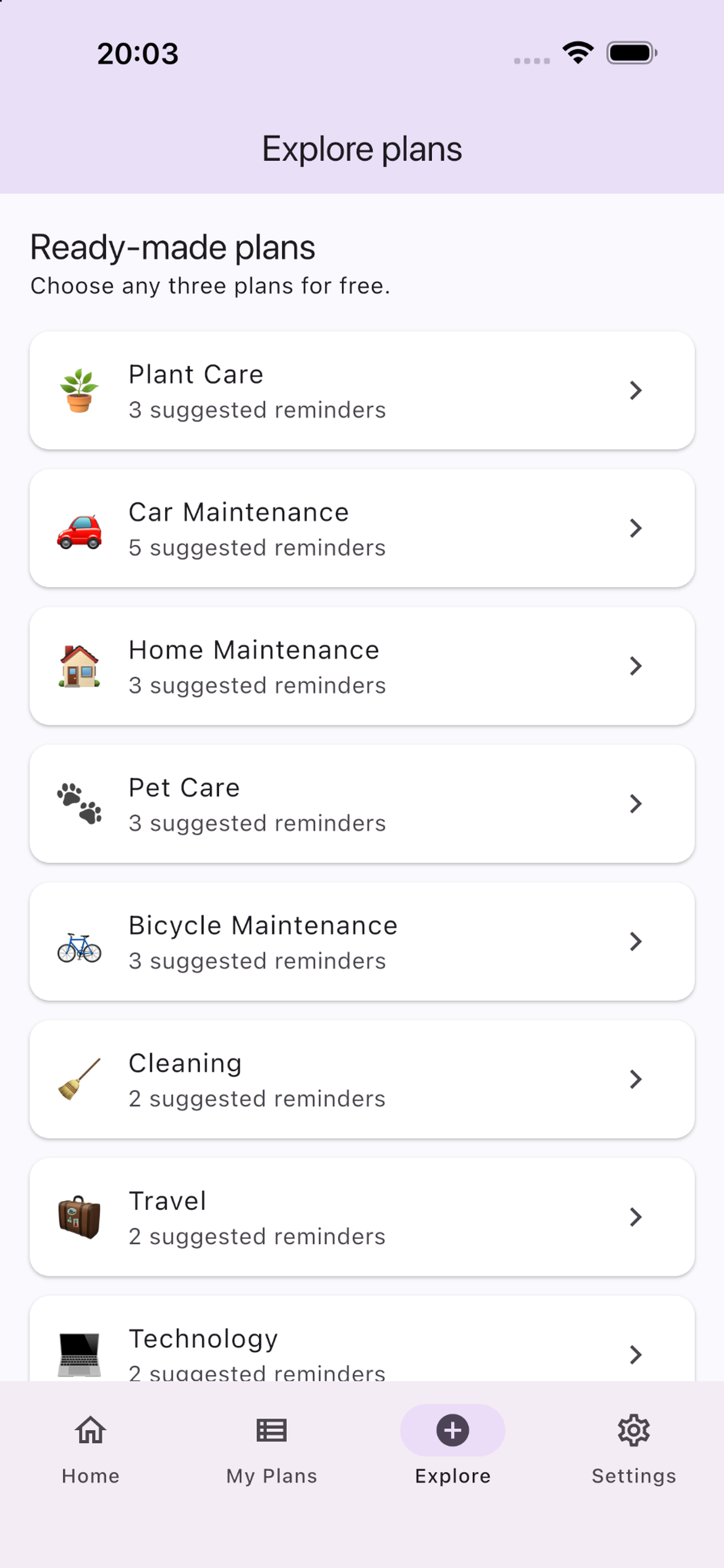
Open Explore and choose a template, then tap Activate plan. Alternatively, select Create custom plan, enter a name, and save. Open My Plans to find your active plans.
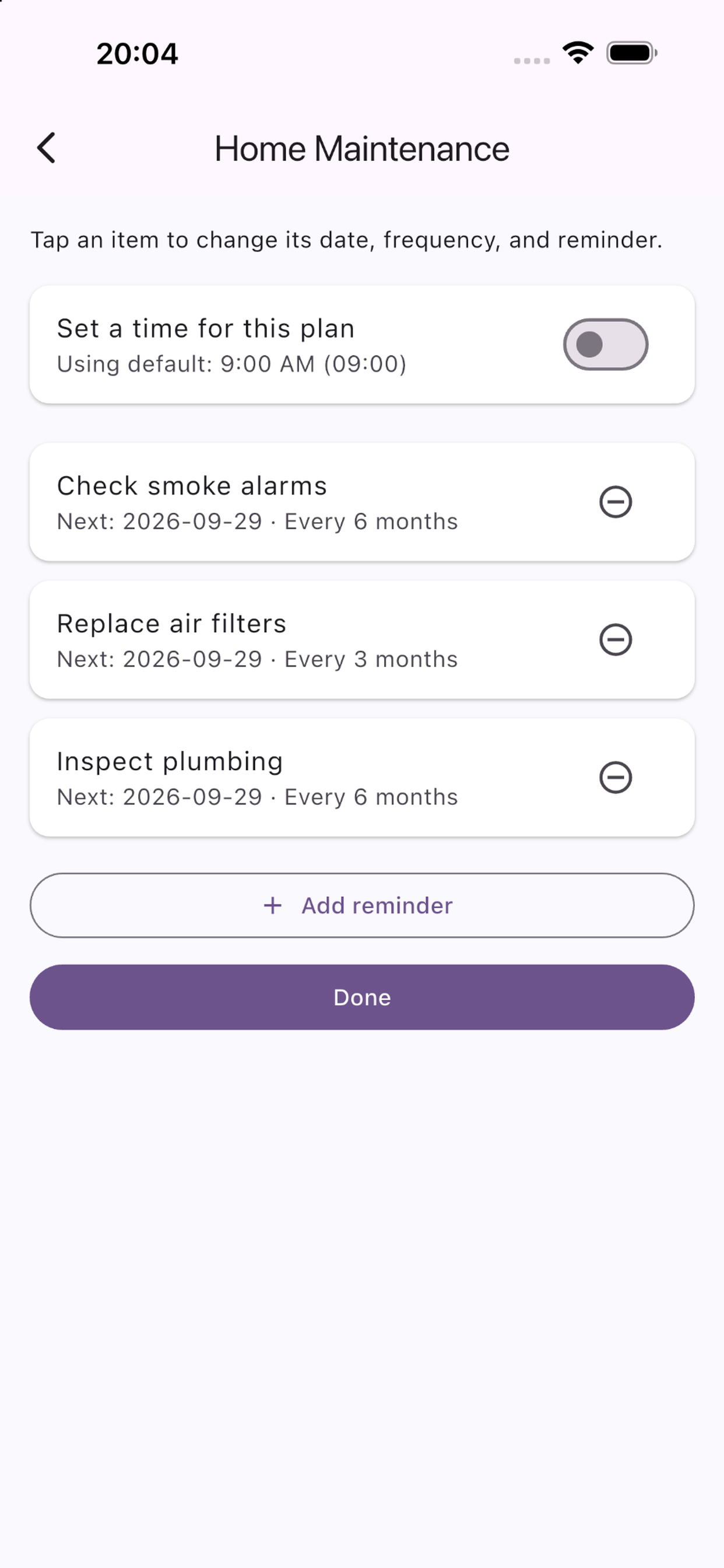
Open the plan, check its reminders and due dates, then enable notifications in Settings if you want alerts.
3. Create, rename, and duplicate plans
A ready-made plan starts with suggested reminders. A custom plan starts empty: open it and tap Add reminder. Enter your own reminder details and save.
In My Plans, tap the plan’s three-dot menu and choose Rename plan or Duplicate plan. Enter a name and save. Copies have independent reminders, due dates, and plan times. They do not inherit a pending snooze.
Activating the same template again creates another independent plan. Custom and duplicate plans count toward the three-free-active-plan limit. Pro removes that active-plan limit.
4. Edit a reminder
Open a plan and tap a reminder. Change What?, Next due, Repeat every, Unit (day, week, month, or year), and Remind me. The repeat interval must be a whole number of at least 1.
Remind me offers On due date or 1, 3, or 7 days before. To receive the first alert, choose a due date, lead time, and notification time that place the alert in the future.
Turn Include reminder off to pause its alerts, or on to resume them. Save applies your edits; Cancel discards the edits in that dialog. The remove icon removes an item from the plan.
5. Choose notification times
Settings → Default reminder time sets the time used by plans without their own time.
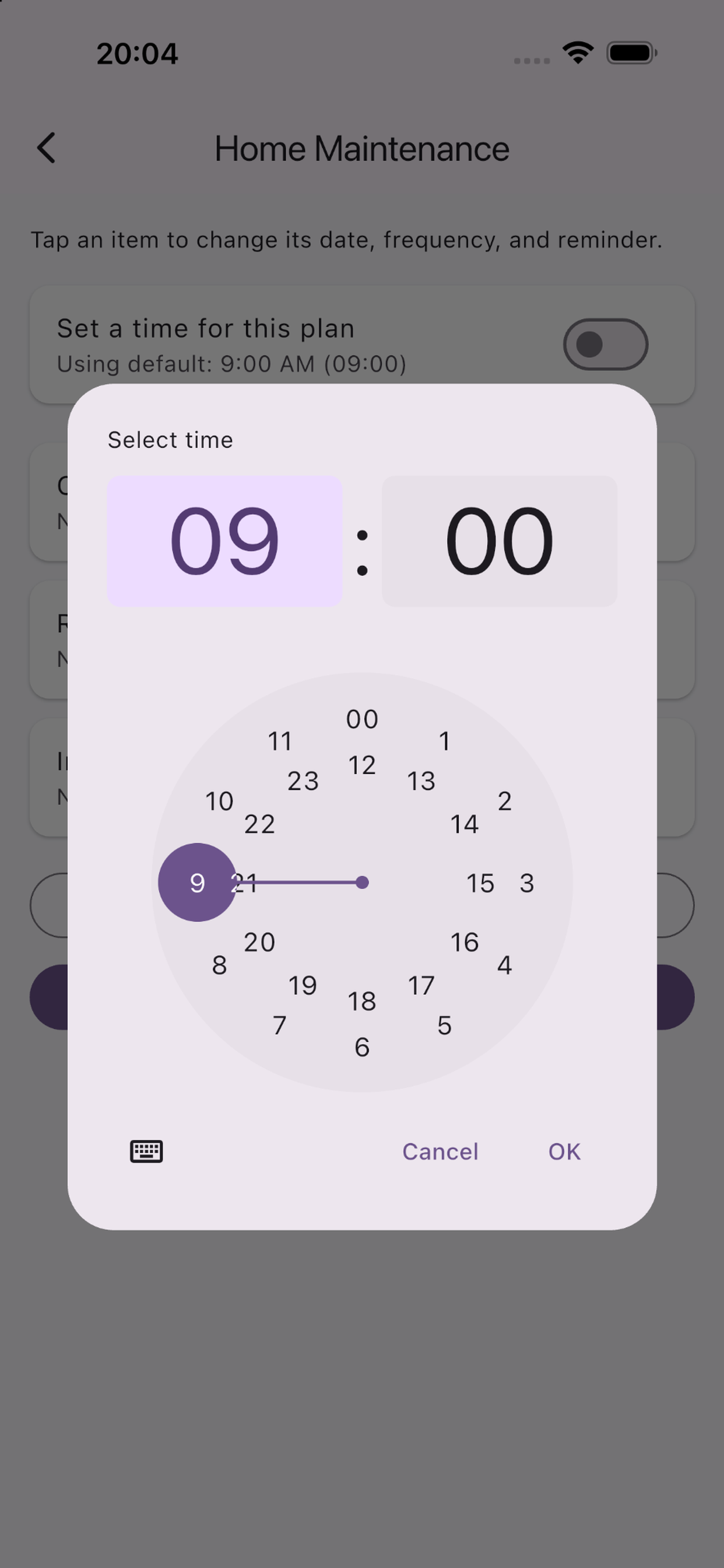
Open a plan and enable Set a time for this plan. Choose a time and confirm Save. Use Change time to adjust it. Switch the option off to return to the default time.
Plan times use the phone’s local time. A plan-specific time applies to that plan’s reminders; different plans can use different times.
6. Complete, archive, and restore
On Home, tap the check button to mark a reminder done. Its next due date is calculated from the day you complete it using its repeat interval. Completion also cancels its pending snooze.
My Plans → three-dot menu → Archive moves the plan out of active plans after confirmation and stops its pending alerts. It keeps the plan’s reminders and dates and frees an active-plan slot.
Scroll to Archived and tap Restore to reactivate a plan. Free users need an available slot. There is no permanent plan-delete control in this version.
7. Enable and test notifications
In Settings, turn Notify me on and allow iPhone notifications. In iPhone Settings → Notifications → Life Planner, allow the lock-screen/banner presentation and sound you want. Focus, Silent mode, alert volume, and notification-summary settings can affect what you hear or see.
Send test alert schedules a basic notification about 15 seconds later. Return to the Home Screen and lock the phone to check delivery. This test alert has no snooze actions.
Use Scheduled plan alerts in Settings to inspect upcoming alerts. Open Life Planner periodically to refresh future reminders, especially if you have many items. Alerts are notifications, not continuously ringing alarms.
8. Snooze a reminder
When a newly scheduled plan notification arrives, press and hold it to reveal Snooze 10 minutes, Snooze 30 minutes, Snooze 1 hour, and Snooze 1 day. Select one; you do not need to open the app.
One day means the same local time tomorrow, not necessarily exactly 24 hours across a daylight-saving change. A snoozed alert can be snoozed again.
Inside a plan, tap Snooze below a reminder to use the same four choices. Notifications and that reminder must be enabled. A pending snooze displays Snoozed until with a date and time; tap it and choose Cancel snooze to cancel.
Only one snooze is pending per reminder. Choosing another delay replaces it. Snoozing does not mark the task done or change its due date or recurrence; normal alerts for that reminder resume after the snooze period.
Completion, pausing, removal, archiving, changing the due date or recurrence, or switching notifications off cancels the pending snooze when the schedule updates. Old notifications delivered before this feature was installed have no snooze actions.
9. Choose your language
Settings → Language lets you choose English, Japanese, Spanish, French, German, Italian, Simplified Chinese, or Hindi independently of the iPhone language.
Built-in labels and displayed dates follow the selected app language. Names you enter or deliberately edit remain as written. Changing the manual’s language does not change the app’s setting.
10. Valrisa Pro and purchases
The free app supports up to three active plans. Valrisa Pro is an optional one-time, non-consumable purchase for unlimited active plans, not a subscription. See the displayed price in your storefront.
Open Settings → Valrisa Pro → Unlock Pro and complete Apple’s confirmation. To recover an existing purchase, use Restore Purchases with the Apple Account that originally purchased Pro. Wait for the active-Pro confirmation.
If the store is temporarily unavailable, check your connection and Apple Account, then use Try again when shown. Contact support if purchase restoration still fails.
11. Troubleshooting
No scheduled alert: check Notify me, iPhone permission, Include reminder, the due date, advance-reminder choice, and default or plan-specific time. Verify that the calculated alert time is still ahead, then inspect Scheduled plan alerts.
No sound: check Life Planner’s notification sound permission, phone alert volume, Silent mode, and Focus. An alert arriving silently does not necessarily mean it was not scheduled.
No snooze choices: use a real plan notification scheduled by build 17 or later, not Send test alert or an old delivered notification. Press and hold the notification, or use Snooze inside the plan.
Missing plan: check My Plans and Archived. Restart the app if needed, but do not delete and reinstall it as a troubleshooting step if you need its local plans.
12. Data, privacy, and support
Plans and preferences are saved locally on this device. They are not automatically synchronized between iPhones or with Android. A Pro purchase does not transfer your plan data.
Keep the app installed when updating. Deleting it can remove local plans. This version has no in-app plan export or cross-device synchronization control.
Use the Privacy and Support links below for further information. For support, include the version/build shown in Settings → App version.
Need help? Email valrisa-support@slk85.com with your app version/build, iPhone model, iOS version, and what happened. Do not send passwords or sensitive personal information.