1. Getting started
PackSimple keeps a separate checklist for each trip. Start from a ready-made template or create a blank list, then check off items as you pack.
- Install and open Valrisa PackSimple on your iPhone.
- Tap the + button on the home screen to create a trip.
- Choose a template or a blank list and enter the trip details.
- Open the trip to view and customize its packing items.
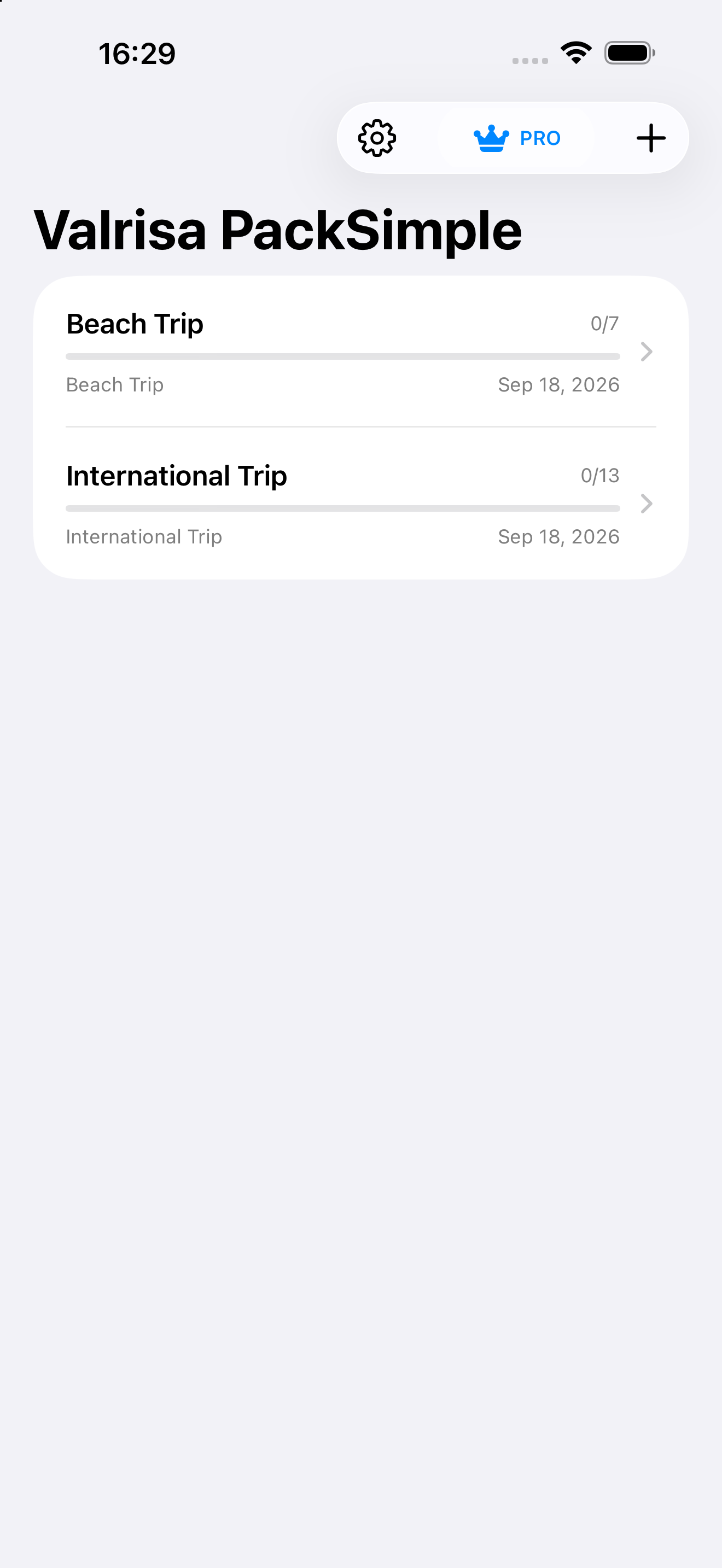
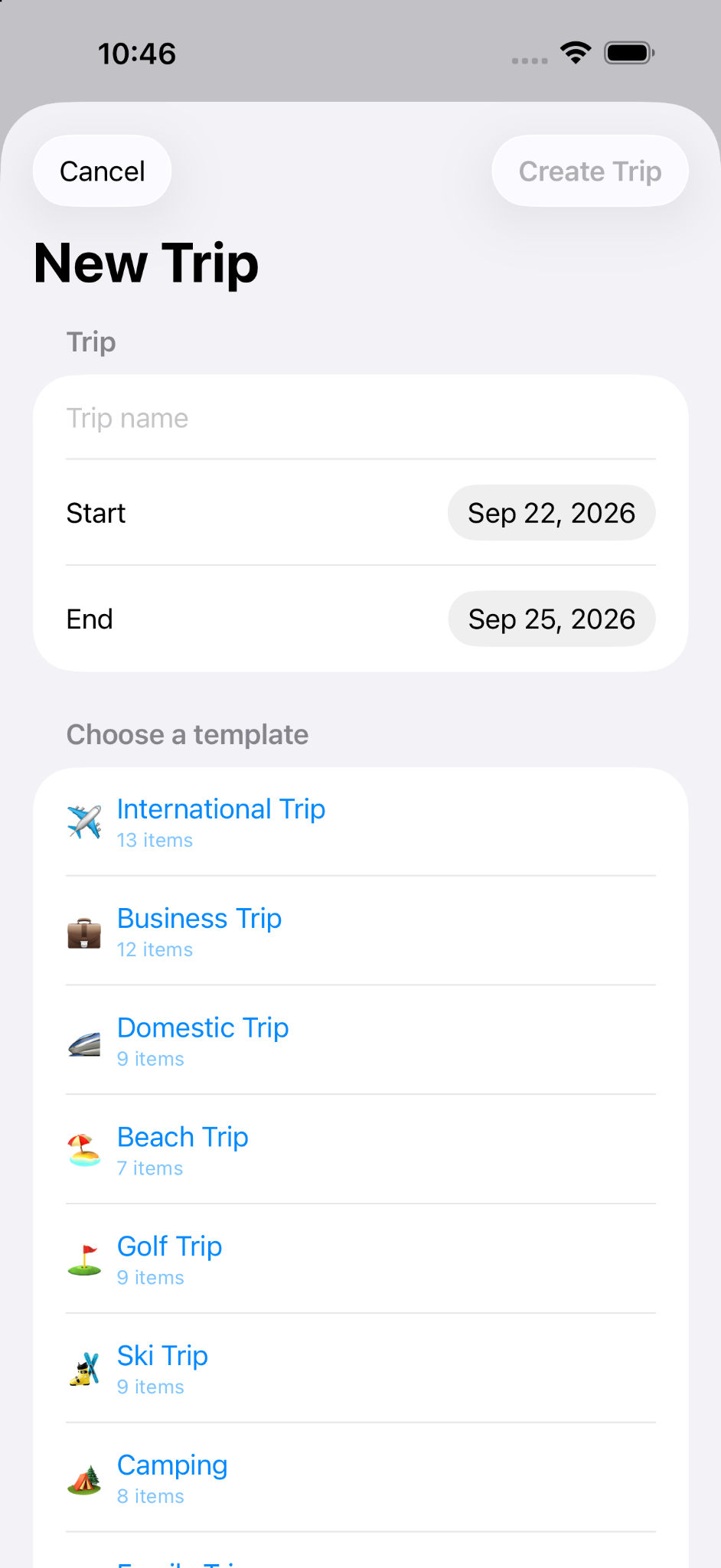
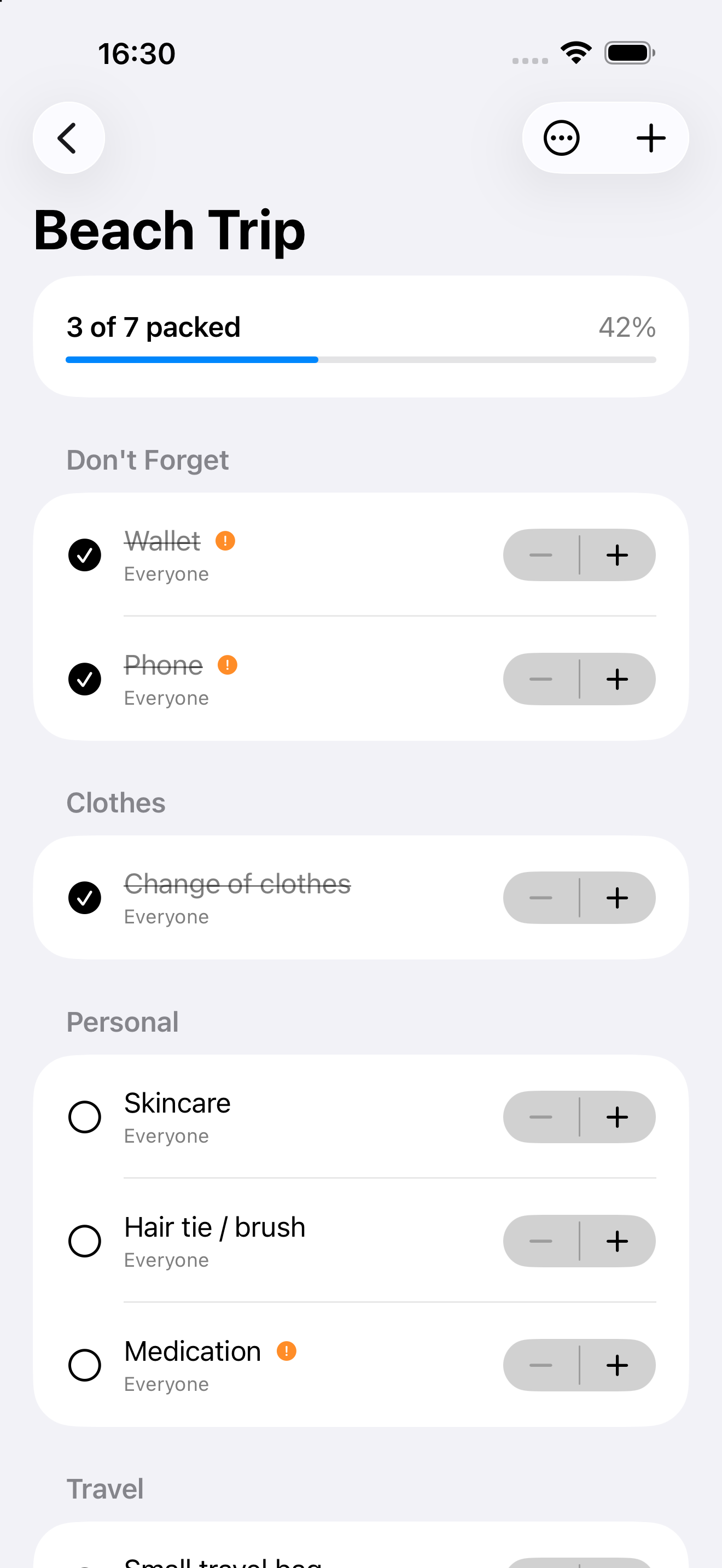
Screenshots are illustrative and may show an earlier layout; the instructions describe version 1.4.
2. Create a trip
- From the home screen, tap +.
- Select Blank List to start without any items, or choose a built-in or saved template.
- Provide the requested trip details and create the trip.
- Open it from the home screen whenever you want to pack or make changes.
Changes to a trip's checklist do not modify the original built-in template.
3. Add, edit, and delete packing items
Add an item
- Open the trip and tap +.
- Enter the item name and category.
- Optionally enable Don't Forget for an important item.
- Tap Add.
Edit an item
- Swipe right on an item and tap Edit.
- Change its name, category, quantity, or Don't Forget status.
- Tap Save.
Delete an item
Swipe left on the item and tap Delete. The deletion affects the current trip's list.
You can also adjust quantity using the stepper shown alongside an item in the checklist.
4. Import / Update from Text
Use simple text instructions to add, remove, or change packing items without editing each item individually. This feature works offline and changes only the current trip.
- Open an existing trip and tap the ••• menu.
- Select Import / Update from Text.
- Enter or paste instructions using Add:, Remove:, Change:, or Replace:.
- Review the preview of proposed changes before applying them.
- Apply the changes. To restore the previous list, use ••• → Undo Last Import.
Example
Add:
- Sunglasses
- Travel pillow x 2

Remove:
- Phone charger

Change:
- Socks from 5 to 8
Replace: is intended to replace the entire packing list; review its preview carefully. Items that cannot be matched for removal or change are ignored. Manual editing remains available.
5. Pack and track progress
Tap the circle beside an item when it has been packed. Tap again to mark it unpacked. The progress bar and packed-item count update as you go. Items marked Don't Forget show an attention indicator.
6. Rename and reuse trips
Rename a trip
- Open the trip.
- Tap the ••• menu.
- Select Rename Trip, enter a new name, and save.
Renaming a trip does not change its packing items.
Reuse a trip
On the home screen, swipe right on an existing trip and choose Reuse. Reusing a trip is a Pro feature.
7. Save and manage custom templates
Lifetime Pro lets you save a customized packing list for future trips.
- Open the trip whose items you want to reuse.
- Tap the ••• menu and select Save as Template.
- Enter a template name and save it.
- When creating another trip, find your saved list under My Templates.
To rename or delete a saved custom template, go to My Templates and swipe on the template to access the available actions. Editing a trip made from a template does not change the original saved template.
8. Manage travelers
Open a trip, tap ••• → Travelers, and add the names of people traveling. To assign an item, use the traveler selector beside it. The default assignment is Everyone. You can also remove traveler names in the Travelers editor.
9. Change the app language
- From the home screen, tap the gear icon to open Settings.
- Find App Language.
- Select your preferred language or Automatic to follow the device setting.
Version 1.4 supports English, Japanese, Hindi, French, Spanish, Italian, German, and Simplified Chinese. Built-in item labels are localized where translations are available; names you type yourself are preserved as entered.
10. Lifetime Pro and restoring purchases
PackSimple allows two trips for free. The optional Lifetime Pro upgrade unlocks unlimited trips and features such as saving custom templates and reusing trips. It is a one-time purchase, not a subscription.
- Tap PRO on the home screen to see the purchase options.
- To recover a previous purchase, choose Restore Purchase while signed in with the Apple Account used for the original purchase.
- Wait for PackSimple to confirm that Pro is active.
11. Troubleshooting
I cannot find my saved template
When creating a trip, check My Templates. Make sure Pro is active if you are using Pro template features.
My Pro purchase is not recognized
Use Restore Purchase with the Apple Account that made or redeemed the purchase. If testing via TestFlight, remember that sandbox and production purchase histories are separate.
An item appears in the wrong category
Swipe right on the item, tap Edit, and change its category.
The app language looks incorrect
Open Settings and select the language explicitly instead of Automatic.
I cannot see a packing item
Check the trip's category sections and scroll through the list. If necessary, add the item again.
12. Data, privacy, and support
PackSimple does not require an account. Packing data is stored on your device. Avoid deleting the app without considering whether you need to preserve its local data.
For additional information, see the Privacy Policy and Support page.
Need help? Email valrisa-support@slk85.com with your app version, iPhone model, iOS version, and a description of the problem. Do not send passwords or other sensitive information.